ProofHub is a project management and team collaboration software that offers a range of features to help teams stay organized and work efficiently. It provides tools for task management, team communication, file sharing, time tracking, and more. The software is known for its simplicity and intuitive user interface, making it easy for users to navigate and find what they need.
How to manage Notes in ProofHub.
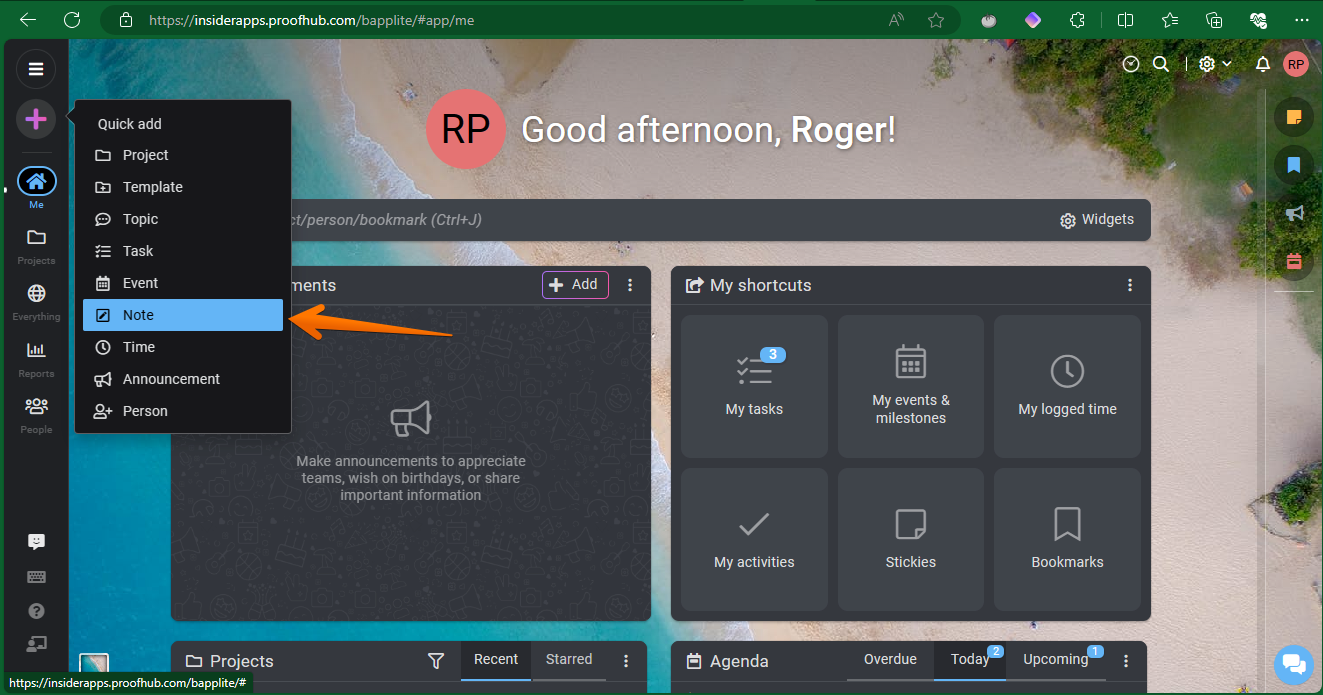
In this post, we are going to study a very important feature of ProofHub. In fact, we are referring to the ability to create and manage Notes within the same platform. In this way, we will be able to create any data related to a project in a single place. This facilitates the workflow by having a place where you can store information related to customers, such as guides, info and in general, any crucial detail. Moreover, with the essential addition that you can easily access it at any time. Additionally, you can add any number of notebooks. Likewise, each notebook can include any number of notes added to it. Okay, without further ado, let's see how we can manage notes in ProofHub. The first thing you have to do is to go to the tool's dashboard. Once there, just click on the plus symbol.

Consequently, a new menu will be displayed. Once there, just click on Note.
A floating window with various fields is immediately displayed. This is the module we will use to add a new note. Consequently, let's fill them in one by scrutinizing their function. First, we will assign the note to a specific project. Then, we will include it in its own notebook. Then we will add a name for the note and set the color of the label. Finally, and optionally, it is possible to add collaborators for the note in question. When you are ready, just click on Add.
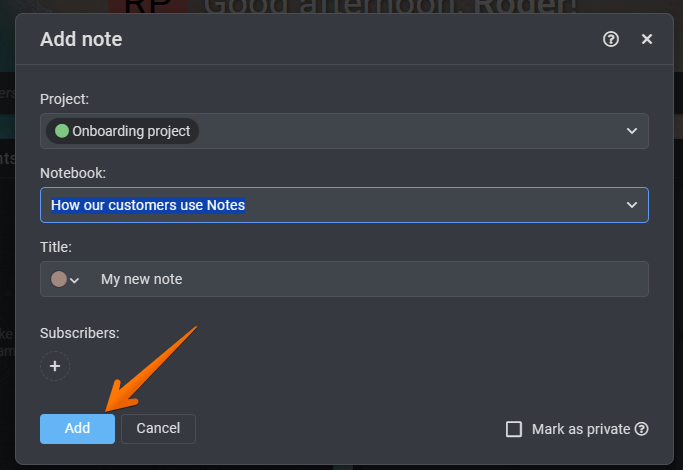
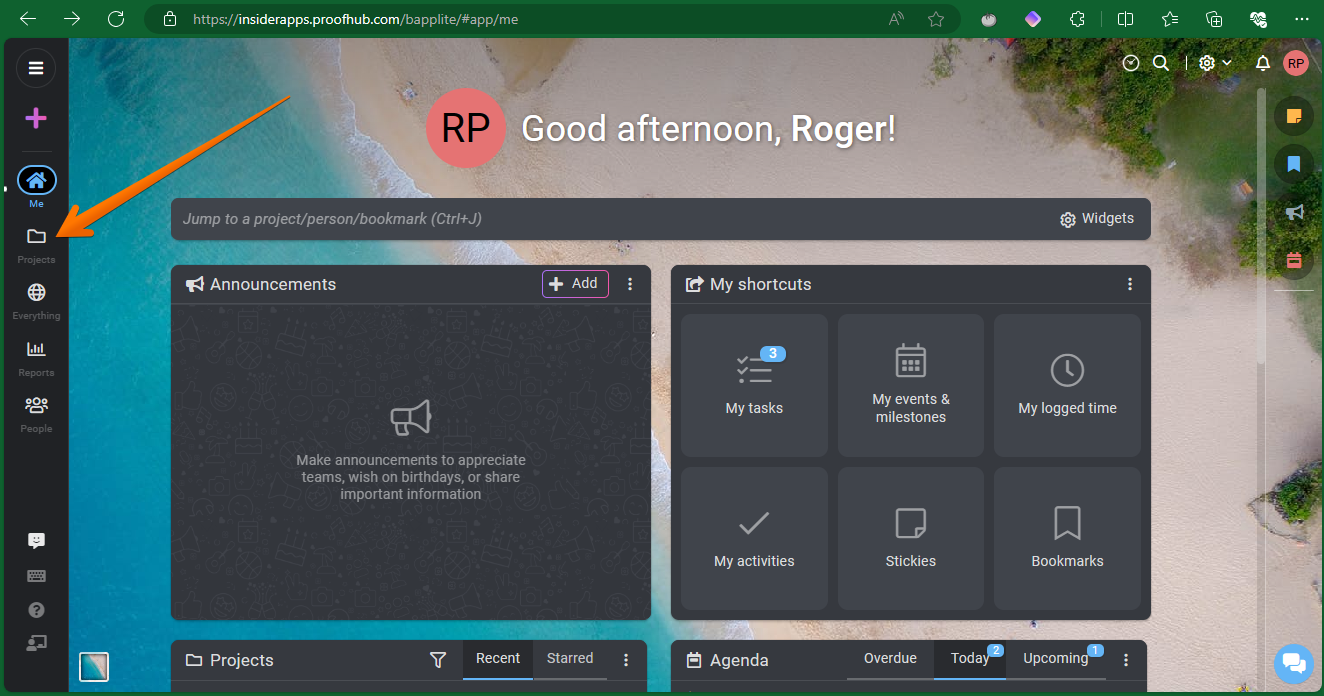
And that's it! In this simple way, we can add a note in ProofHub. Now let's see how to visualize the newly created note. Once again, just go to the Dashboard of the application. Once there, just click on Projects.
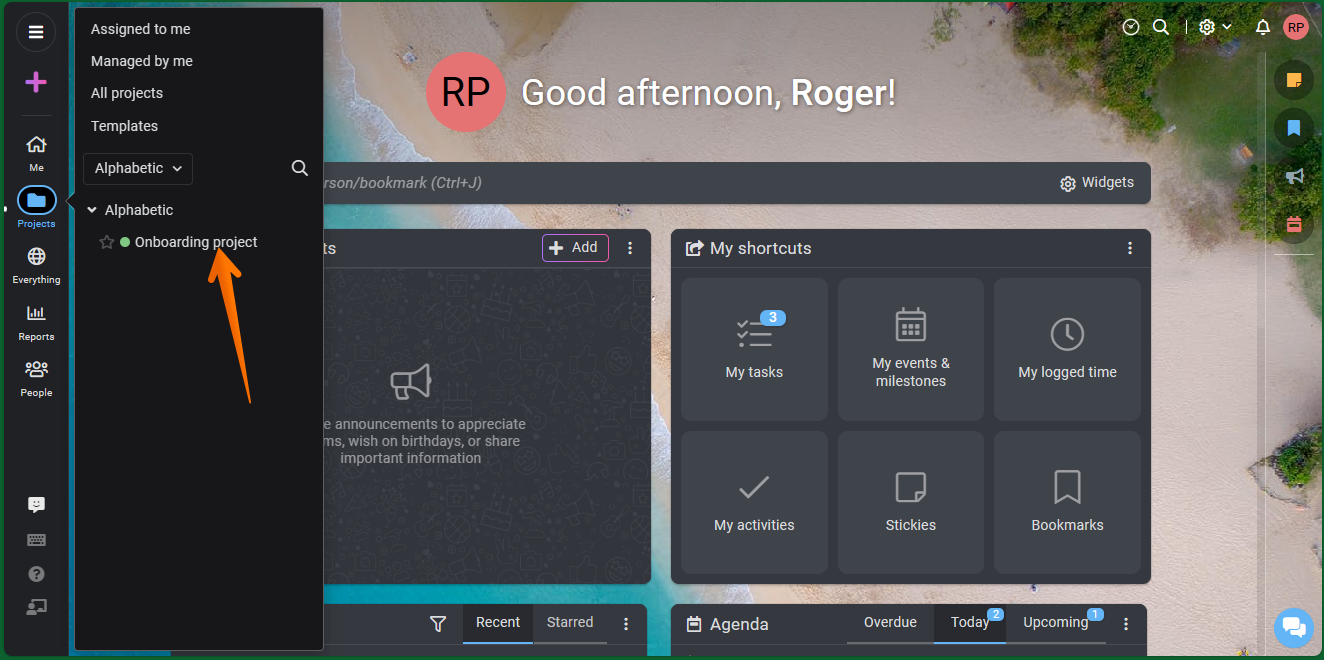
Consequently, the list of available projects will be displayed. Just click on the project where the Note belongs.
Once you get to the Projects module, please click on the Notes menu.

Then, just click on the corresponding Notebook.

Finally, you will be able to see the newly created note.